Monday, November 18, 2013

Email Fishing For Information

Recently we received a fake email where they are fishing for information.  Highlighted below you can see that the antivirus system removed the infected attachment and email address has nothing to do with ADP.   Companies like ADP understand cybercrime and have setup a security alert website with current alerts on the email like the one below.

http://www.adp.com/about-us/trust-center/security-alerts.aspx

On the ADP website, they explain how to report an incident.  Most people should know NOT to OPEN ATTACHMENT or CLICK ON THE LINKS.  After forwarding the email to the correct people(in this case abuse@adp.com) DELETE it.

If you uncertain about an email, search google.com for the sender / subject of the email.  If it is a bad / fake email you will see the search results keywords like security alert, malware, fake email etc.  Again DO NOT CLICK ON ATTACHMENTS or LINKS. Notify your IT staff and DELETE IT.


Friday, November 8, 2013

Setup iCloud backup on iOS 7

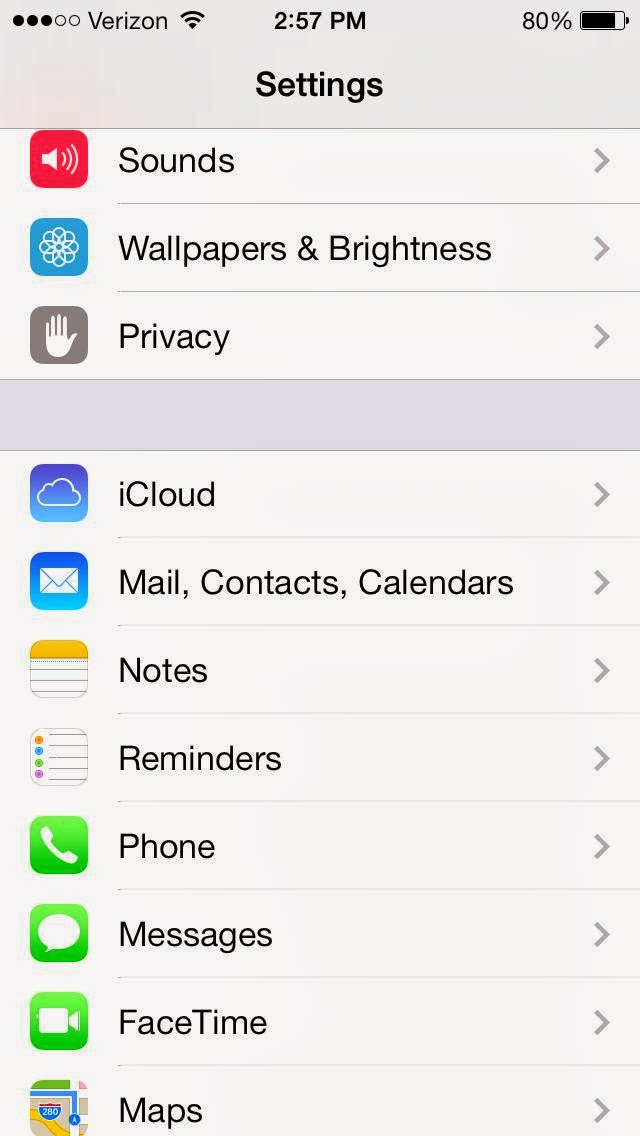
1. Click on the "Settings" icon and it will bring you to this menu:


2. Click on "iCloud".


3. Click on "Storage & Backup".


4. It will then ask you for you Apple ID (the e-mail address you used to setup your phone.) After you typed the username and password, iCloud backup will be enabled. It will backup automatically every night when plugged into power and connected to WIFI. You can also do a manual backup by selecting "Back Up Now".


Monday, May 20, 2013

Creating an Email Signature in Outlook Web App (OWA) 2010

Last time, I showed you how to create a signature in Microsoft Outlook 2013.  Now, I'm going to show you how to create a signature in Outlook Web App (OWA) 2010.  Now since OWA is a stripped-down version of Outlook, the signature functionality is pretty limited.  You only have the option for one signature, and it will be automatically added to every new message and reply you create.

1.  First thing's first; browse to your company's OWA site, and log in with your credentials.


2.  After you get logged in, click "Options" in the upper-right corner, right below your name.  Click See All Options" from this menu.


3.  You should see a menu on the left side of the window now.  Click "Settings".


4.  With Settings open, you should be greeted with a "E-Mail Signature" editor in the center of the window.  Enter your information in the text box, and style/format your signature to your liking.  Once you are finished, click "Save" in the lower right corner.  Simple as that!

Monday, May 13, 2013

Microsoft Account needed for Windows 8 Apps


I did not want to sign up for a new email address.  Instead, you can link your existing email to Microsoft Account.  Below is a link and screen shot of the Microsoft Account signup page.


https://signup.live.com/signup.aspx

Thursday, May 2, 2013

How to take a screenshot on an iPhone or other apple device.

1. If you want to take a screenshot on your phone, press the power and home button at the same time.
The screen will flash white when you know you have taken the screen shot.


2. If you then go to your photos on your idevice you can see the screenshot that you just took.


Monday, April 29, 2013

Creating an Email Signature in Microsoft Outlook 2013

Looking for an easy way to create one or more email signatures in Outlook 2013?  Well look no further!  I'll show you how in a few simple steps.


 1.  In Outlook 2013, click the File menu on the top bar, and select Options.


2.  In the Options window, click Mail from the left-side menu, and click the Signatures button.


 3.  Click the New button.


4.  Type in a name for your signature.  For this example, we will use "Signature".


5.  In the Edit Signature box, create your signature.  Common email signatures include, but are not limited to first and last name, job position/title, company name, and a phone number.  Below is an example of a email signature:
 

6.  Under the Choose Default Signature section, make sure your email address is selected under Email Account, and make sure your newly created signature is selected under New Messages and Replies/ForwardsClick OK on both screens.


7.  OPTIONAL:  In Outlook 2013, you can create as many email signatures as you want.  Just use Steps 3 - 5 to create any additional signatures you would like.  Want to have a custom signature for new emails, and another custom signature for replies?  No problem!  After you have your signatures created, just specify them under the New Messages and Replies/Forwards boxes.  Simple as that!

Sunday, April 14, 2013

Exchange 2010 OWA - Outlook Web App - Out of Office Reply

Just received a call on how to setup email to let people know that they will be on vacation for the next week.  Exchange 2010 OWA - Outlook Web App made this really easy with ways to customize the time it starts and who get what message.


  1. Enter Domain\User Name, Password, and press the Sign In button.
  2. On the right hand side click on Options, a drop down box should appear.
  3. Click on the Set Automatic Replies.
  4. Put a dot next to Send Automatic replies.
    1. Optional - Send replies only during this time period
      1. Set the Start time.
      2. Set the End time.
  5. Type in your message into Send a reply once to each sender inside my organization with the following message.
    1. Optional - Send automatic reply messages to senders outside my organization.
      1. Set either
        • Send replies only to senders in my Contacts list 
        • Send replies to all external senders.
  6. Type in your message into Send a reply once to each sender outside my organization with the following message.
  7. Make sure to press the Save button at the bottom with done.